Pulse Documentation
High-performance e-commerce theme featuring modern tools to boost conversion rates.
Welcome to Pulse
Welcome to the documentation for the Pulse Shopify theme. This theme is designed for high-performance e-commerce stores, featuring modern tools to boost conversion rates and user experience.
Pulse is built with speed and usability in mind, ensuring your customers have a seamless shopping journey from landing page to checkout.
Theme Installation
Installing the Pulse theme on your Shopify store is a straightforward process. Follow these steps to get started:
Step 1: Download the Theme
After purchasing or downloading the Pulse theme, you should have a .zip file (e.g., pulse-theme-v0.1.0.zip). Save this file to your computer.
Step 2: Upload to Shopify
- Log in to your Shopify Admin dashboard.
- Navigate to Online Store > Themes.
- In the Theme library section, click the Add theme button.
- Select Upload zip file from the dropdown menu.
- Click Add file, select the
pulse-theme-v0.1.0.zipfile you downloaded, and click Upload file.
Step 3: Publish the Theme
Once the theme is uploaded, it will appear in your Theme library.
- Find Pulse in the list.
- Click the Publish button next to the theme to make it your live storefront.
- Confirm your choice in the modal window.
Congratulations! Pulse is now live on your store.
Quick View
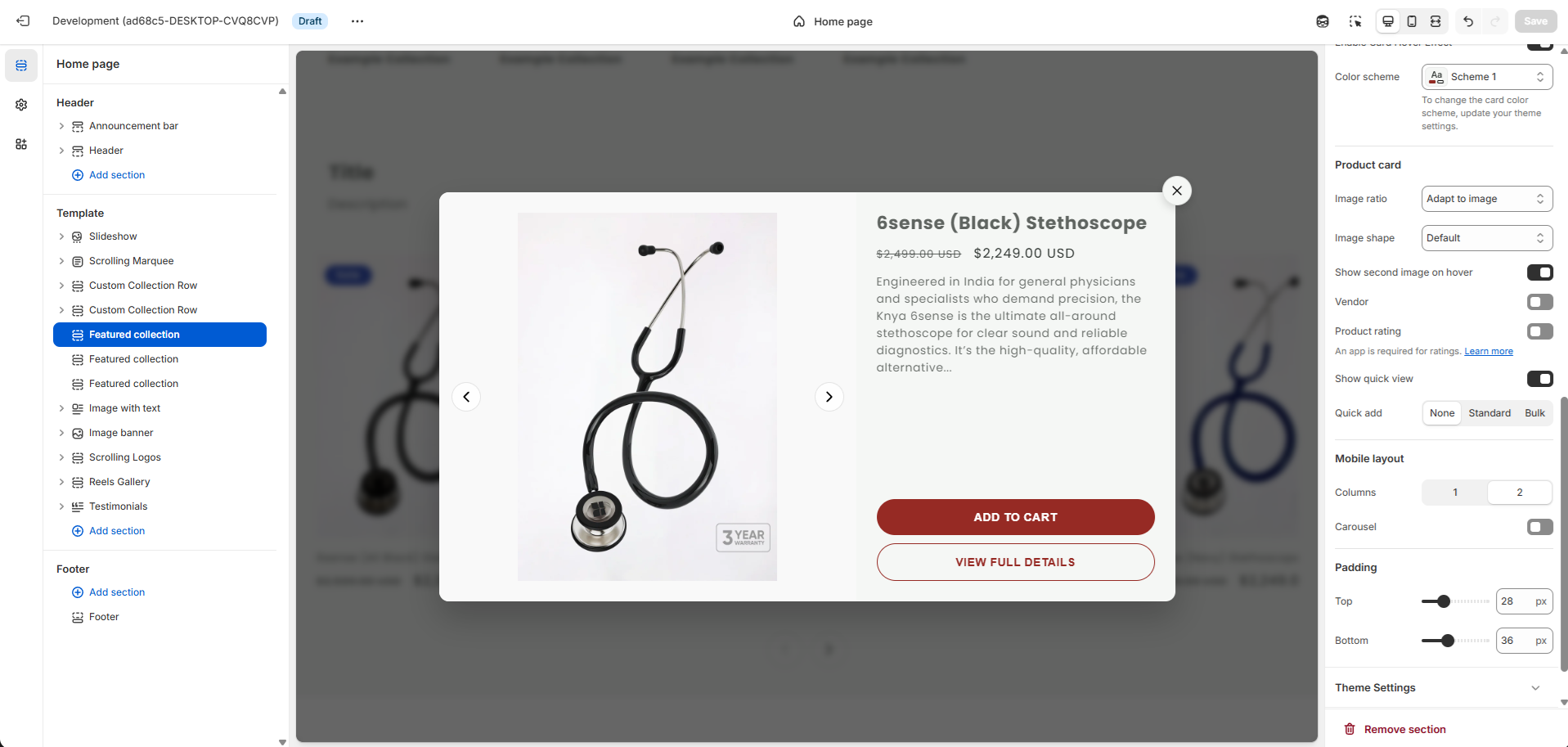
The Quick View feature allows customers to preview product details and add items to their cart without leaving the current collection or home page.
How it works
A "Quick View" button (eye icon) appears on product cards when hovered. Clicking it opens a modal with product images, details, and an "Add to Cart" form.
Configuration
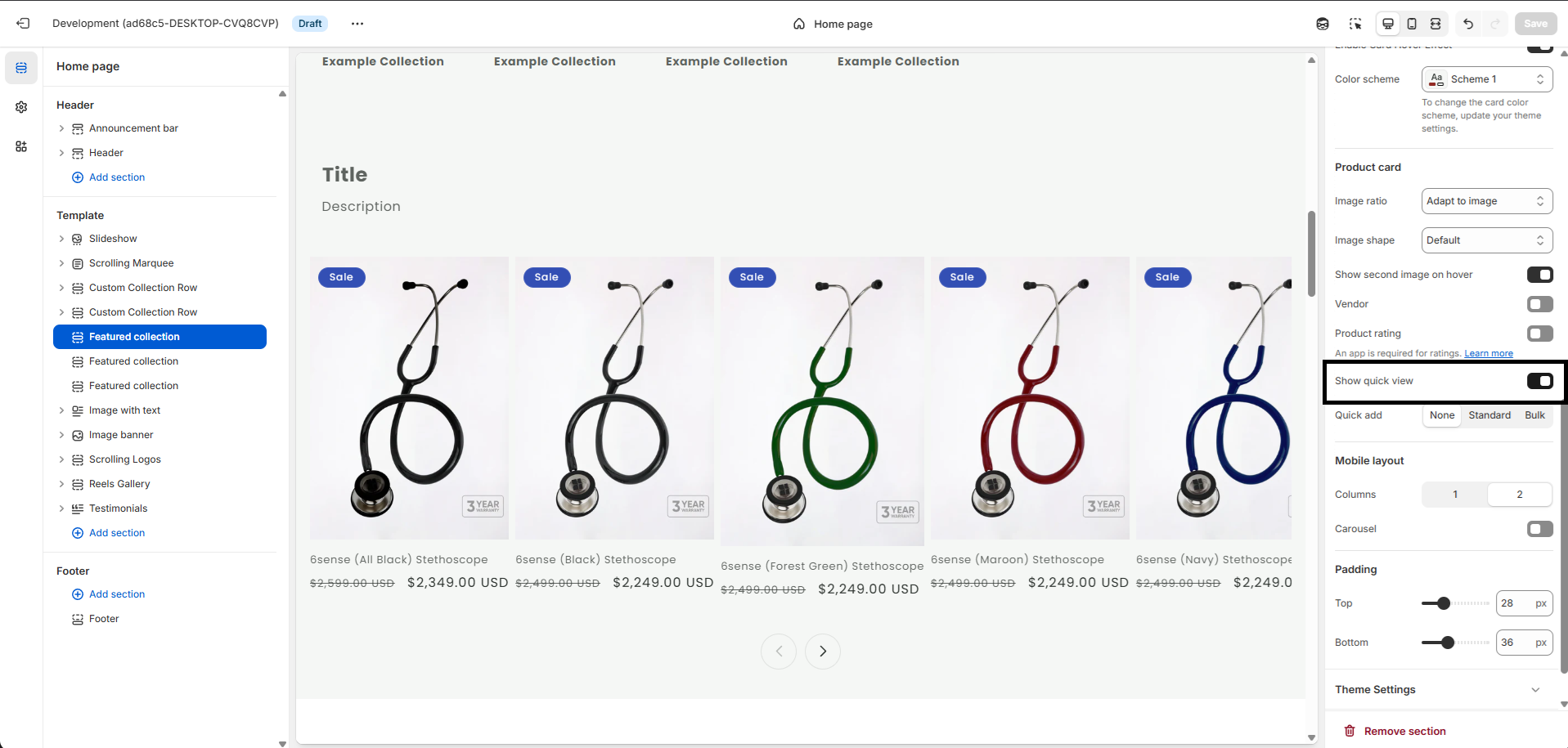
- You can enable or disable this feature per section.
- Go to Customize > [Section Name] (e.g., Featured Collection, Product Grid).
- Toggle the "Show quick view" checkbox.
- Default: Enabled (
true).
Cart Upselling
Pulse includes an intelligent Cart Upselling feature integrated directly into the Cart Drawer.
How it works
When a customer adds an item to their cart, the drawer opens. At the bottom of the drawer, a "You might also like" section appears, displaying recommended products based on the items currently in the cart.
Technology
It utilizes Shopify's native Product Recommendations API to ensure relevant suggestions.
Setup
This feature works automatically. Ensure your products have relevant data for Shopify's recommendation algorithm to work effectively.
Variant Swatches
Display color options as visual swatches on product cards instead of simple text lists.
How it works
The theme automatically detects product options named Color, Colour, Couleur, Colore, Farbe, or Cor.
Setup
- Create a product with an option named "Color" (or one of the supported variations).
- The theme will attempt to match the color name (e.g., "Blue", "Red") to standard web colors.
- Advanced: To use custom images or specific hex codes, ensure your variant image is set, as the swatch can fallback to displaying the variant's featured image if available.
Cart Drawer
A modern, slide-out Cart Drawer that provides a seamless checkout experience.
Features
- Live updates of cart contents.
- Integrated Upsell Carousel.
- Cart Notes field.
- Free Shipping progress bar (if configured).
Product Rating
Product ratings are managed through third-party apps like Judge.me and other review apps.
When installed, these apps allow customers to leave reviews and ratings, which are then displayed on your product pages and collection listings.
Manage Customers
When a new customer places an order with your store, their name and information are automatically added to your customer list. A customer profile is created when a customer interacts with your business in any of the following ways:
- Signing up for your mailing list or a customer account
- Placing an order
- Starting an order, but abandoning their checkout
Alternatively, you can add a customer to your store manually.
You can send email messages to individual customers from your Shopify admin, or send discounts and email messages to groups of customers by using customer segments.
Filters
You can use the Shopify Search & Discovery app to create filters for your online store that let customers refine which products are displayed on collection pages and in search results.
For example, a store that sells watches could create filters for brand name, price, dial size, and water resistance.
Need more help? Contact Support